
The Home screen is the default view when you start the 3DMark for macOS app. We've made it easy to find the right test for your hardware. The Home screen will recommend the most suitable benchmarks for your PC. You can find and run other tests in the categories that are listed below the recommendations.
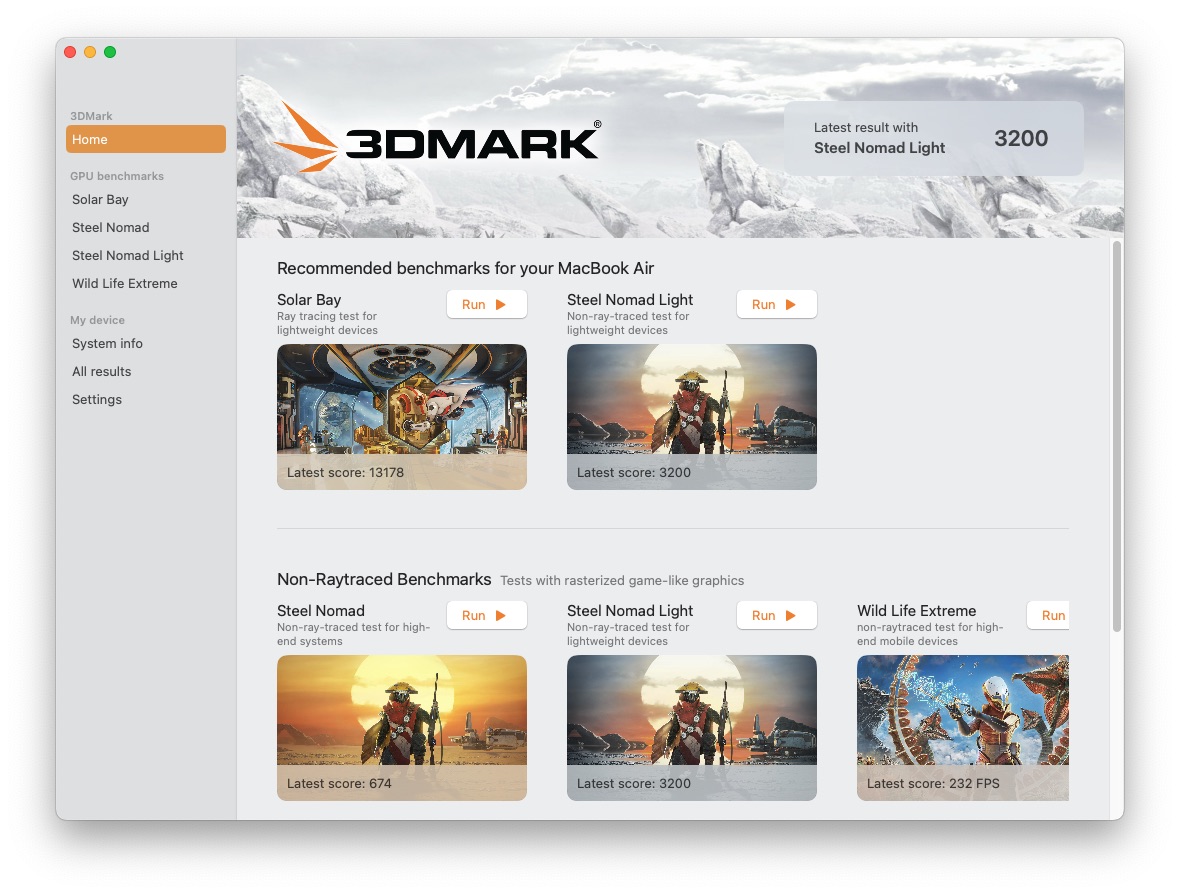 (Image: Screenshot of the 3DMark macOS home screen, Jun 2025)
Click on the Run button to directly start a benchmark on your system. The benchmarks on top are recommended benchmarks for your hardware.
Below the recommended benchmarks you find test categories like Non-Raytraced benchmarks and ray-tracing benchmarks. Over time new categories will follow.
Click on the thumbnail image of a benchmark to go to its detail page, On the detail page you can run the selected benchmark with or without sound and choose other benchmarking modes, depending on if you run the free demo version or a paid version of 3DMark:
- Custom runs (i.e. change render resolution, aspect ratio, switch between fullscreen and windowed mode, and activate HDR),
- Stress Tests for measuring the sustained performance, it shows if the device can keep the performance over longer gaming sessions.
- Unlimited modes (offscreen rendering)
Some benchmarks offer an interactive Mode, the Explorer Mode, which invites you to fly through the scene, watch it from all angles, listen to it, pause it, and find hidden secrets.
You can always get back to the Home screen if you click on the Home button in the side navigation. And you can also directly access benchmarks, results, system information and settings from there.
If you prefer the dark over the light mode of the user interface, you can change this in the settings. 3DMark macOS can also be set to adapt to the macOS system settings, so that it changes automatically between the designs.